Troubleshooting Tips for Network Devices: A Simple Guide

Peter Maz | Published 01/28/2025 | Updated 08/11/2026
Share on FacebookNetwork devices are the backbone of modern connectivity, keeping our homes and businesses running smoothly. But when network issues arise, they can be frustrating and disruptive.
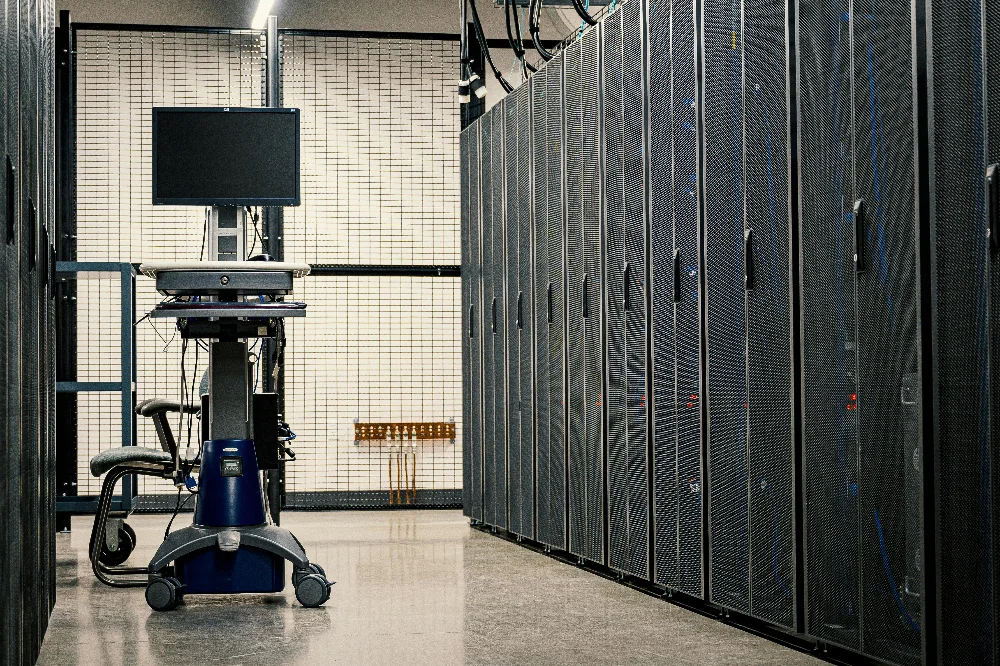
Before calling in a technician, there are several basic troubleshooting steps you can take to resolve common issues with your router, modem, or other network devices.
This guide covers straightforward tips to help you identify and fix network problems, saving time and getting you back online quickly.
1. Check if Airplane Mode Is Enabled
Airplane mode can disable Wi-Fi and other radios, although many current devices allow Wi-Fi or Bluetooth to be turned back on while airplane mode remains enabled. Check both the airplane-mode control and the separate Wi-Fi control instead of assuming one setting proves the radio state.
What to Do for Devices That Have Airplane Mode:
- On your device, navigate to the settings menu and check if airplane mode is turned on. If it is, toggle it off and wait a few moments for the device to reconnect to Wi-Fi.
2. Ensure Wi-Fi Is Turned On
Another common issue is that Wi-Fi is simply turned off. This can happen accidentally or as a result of certain device settings.
What to Do to Check Your Wifi:
- On a laptop, look for the Wi-Fi icon in the system tray or taskbar. If it’s disabled, click to turn it back on.
- On mobile devices, go to the Wi-Fi settings and ensure it’s enabled.
- For desktop computers using external Wi-Fi adapters, check that the adapter is plugged in securely and functioning correctly.
3. Check for Device Connectivity Issues
Sometimes, the problem isn’t with your device but with the router or modem. If one device can’t connect, test the network on other devices.
What to Do to Look for Connection Issues:
- Try connecting another device, like a phone or tablet, to the same Wi-Fi network.
- If other devices can connect, the affected device, its saved network profile, or its location becomes a stronger suspect, but that comparison is not conclusive by itself.
- If no devices can connect, check the router, modem or fiber terminal, provider outage status, power, and cabling before changing device settings.
4. Restart Your Devices
A restart can clear a temporary device, adapter, or connection state, but it does not diagnose recurring faults. Save work first and use the documented restart process for the equipment you own.
What to Do for a Device Restart:
- Restart the affected device.
- If the provider or manufacturer permits a power-cycle, follow its order and timing. Combination gateways, battery-backed equipment, fiber terminals, managed business devices, and systems carrying phone service may require different steps.
5. Check for Overloaded Networks
A high device count does not automatically mean overload. Active traffic, weak signal, channel contention, client capability, router capacity, and the internet service can each limit performance. Compare another device, another location, and—when practical—an Ethernet connection before buying equipment or changing the plan.
What to Do to Check for Overloading:
- Use the router maker’s app, label, manual, or provider instructions to locate its administration interface; there is no single address that applies to every router.
- Review active devices and traffic if the router provides that information. Disconnecting an idle device may make no measurable difference, while one active backup or download can use substantial capacity.
- Measure where the limit occurs before upgrading the internet plan, router, or Wi-Fi coverage. Those changes solve different problems.
6. Verify Network Cables and Connections
Physical issues with cables and connections are another common cause of network problems.
What to Do to Verify Connections and Cables:
- Ensure all cables are securely connected to the modem, router, and any wired devices.
- Look for damaged or frayed cables, and replace them if necessary.
- If you’re using a wired Ethernet connection, test with a different cable to rule out a faulty one.
7. Check for Router or Modem Updates
Firmware updates can contain security, compatibility, and reliability fixes. They can also change settings or require a restart, so use only the provider’s or manufacturer’s official process and save the current configuration when supported.
How to Check Your Router or Modem:
- Access your router’s admin panel and look for a firmware update section. Follow the manufacturer’s instructions to update to the latest version.
- If your modem was provided by your ISP, contact them to ensure it’s running the most recent firmware.
8. Look for Signal Interference
Wi-Fi signals can be disrupted by physical obstacles or electronic interference from nearby devices.
How to Find Signal Interference:
- Move your router to a central location in your home or office, away from walls or metal objects.
- Avoid placing the router near devices like cordless phones, microwave ovens, or baby monitors, which can interfere with Wi-Fi signals.
- Consider using a Wi-Fi extender if the signal is weak in certain areas.
Placement, building materials, and the difference between a wireless extender and a wired access point deserve a closer look. Use the complete Wi-Fi troubleshooting and router-placement guide before buying additional equipment.
9. Treat a Factory Reset as a Last Resort
A factory reset erases the device configuration and can take the entire network, phone service, cameras, or business systems offline. Before considering it, save or export the current configuration when the device supports that, and confirm that you have the administrator login, internet-provider credentials, Wi-Fi names and passwords, and the instructions needed to rebuild the setup. If the equipment is provider-managed, part of a mesh system, supports VoIP, or serves a business, contact the provider or a qualified technician first.
If a Reset Is Appropriate:
- Follow the exact reset procedure in the manufacturer’s documentation for your model; button locations and hold times vary.
- Reconnect from a trusted device, change default administrator credentials, install available firmware updates, and restore only a configuration you trust.
- Reconfigure internet access, Wi-Fi security, guest networks, mesh nodes, phones, cameras, and other dependent devices, then test them before considering the work complete.
Sources and Further Reading
These official references support the general troubleshooting and router-security steps above. Menus, restart sequences, and reset procedures still come from the documentation for your exact equipment.
- Microsoft Support: fix Wi-Fi connection issues in Windows
- Apple Support: recommended Wi-Fi router and access-point settings
- Federal Trade Commission: securing a home Wi-Fi network
Sources were reviewed on August 11, 2026. A citation does not imply sponsorship or endorsement.
When to Call a Professional
If these troubleshooting steps don’t resolve your network issues, it may be time to consult an expert. Persistent problems could indicate faulty hardware, ISP issues, or advanced configuration needs. Professional assistance from Raven Technology Solutions can save time and help optimize the network for the measured space, equipment, and usage.
Network issues can be frustrating, but with these basic troubleshooting tips, many problems can be resolved quickly and efficiently. By checking simple settings like airplane mode, verifying connections, and restarting devices, you can often restore connectivity without additional help.
Remember to keep your devices updated and monitor your network for overloads or interference to maintain a stable connection. With these steps, you can take control of your network and keep everything running smoothly.


