Computer Troubleshooting
Is Your Hard Drive Failing? What to Do First
Copy first, diagnose second. In that order.
Start Here
If the drive is still readable and is not clicking, grinding, repeatedly disappearing, or holding the only copy of irreplaceable data, copy your most important files before routine diagnostics or repair tools. If severe mechanical symptoms are present or the data cannot be replaced, stop using the drive and speak with a professional recovery provider before attempting a DIY copy.
First Few Minutes
Three Checks, in This Order
- Listen, but only if it is a mechanical drive. Repeated clicking, grinding, or a new rhythmic tick can indicate mechanical trouble and is a reason to stop rather than keep testing. This check does not apply to an SSD, which has no moving parts and may fail without an audible warning.
- Copy the files that matter when a DIY copy is appropriate. Start with irreplaceable documents and photos rather than a long diagnostic or full-system image. Do not keep retrying unreadable files while more important readable data remains.
- Then use the manufacturer’s diagnostic guidance. SMART names, raw values, thresholds, and supported self-tests vary by drive maker and model. Treat the operating system’s summary, symptoms, backups, and the manufacturer’s interpretation together.
Narrow It Down
Which One Describes Your Computer?
A mechanical drive making noise
New clicking, ticking, or grinding from a spinning drive can indicate physical failure in progress. Continuing to power a mechanically damaged drive may reduce the chance of recovery, so stop rather than testing it repeatedly.
- Shut it down now rather than running more tests.
- If the files are irreplaceable and not yet copied, the right next step is a professional recovery service rather than another attempt at booting it.
- If the files are already backed up, the drive is simply due for replacement.
There is no universal number of safe restarts for a mechanically damaged drive. The reason for stopping is simpler: repeated operation adds avoidable use before a recovery plan is chosen.
It freezes for thirty seconds or so, then carries on
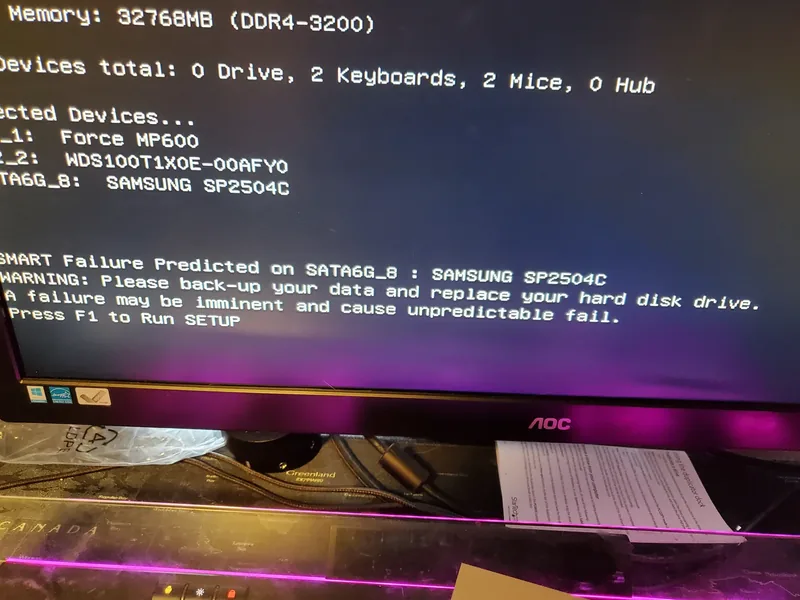
This pattern can come from repeated storage read attempts: the drive or its connection may be stalling and eventually succeeding or timing out. Other hardware and software problems can also cause pauses, so protect the data before trying to prove the cause.
- Copy your files now, while it is still readable.
- Then use the drive maker’s supported diagnostic tool or documentation. Mechanical drives commonly expose reallocated, pending, or uncorrectable-sector information, but names and meanings are not universal.
- A new warning, a failed manufacturer test, or a changing value that the manufacturer identifies as significant is concerning. Do not treat a third-party label for one raw number as a universal verdict.
This is where a general health status can mislead. It may continue to read PASS until a manufacturer threshold is exceeded, while symptoms or changes in individual attributes provide an earlier warning.
It is an SSD
SSDs can fail differently from spinning drives, so advice based on noise or mechanical sectors may not apply.
- Do not judge by sound. There is nothing to hear.
- Some SSD failures are abrupt: the drive may become read-only or disappear between one start-up and the next. Others show errors or declining health first.
- Review the health, available-spare, estimated-life, media-error, or data-written values that the SSD manufacturer documents for that exact model. Not every SSD exposes the same attributes.
- Because an SSD can fail abruptly, it needs a current backup just as much as a mechanical drive.
It says "no bootable device" or similar
This looks terminal and sometimes is not. A damaged boot entry can produce the same message as a missing or failing drive, so detection in firmware is a clue rather than a health test.
- Go into the firmware setup screen and see whether the drive is listed at all.
- If it is listed, the computer can still communicate with it, but that does not prove the drive is healthy or that the fault is only software. Protect readable data before attempting startup or filesystem repairs.
- If it is not listed, a loose cable is one possibility on a desktop. Before opening the case, shut down, unplug power, follow the model’s service instructions, and use basic anti-static precautions; otherwise have the connection checked professionally.
The recoverable version of this is common enough that it is always worth checking before treating the machine as dead.
It might not be the drive at all
A few things imitate drive failure closely enough to send people down the wrong path.
- A loose or failing cable on a desktop produces intermittent disappearances.
- An external drive in a failing enclosure often works fine once the drive is moved to another one.
- A nearly full system drive slows everything down and can look like failure. Check the free space first.
Worth Knowing
What the Numbers Mean
If you look at a mechanical drive’s health data, these entries are useful starting points. Attribute names and raw values vary by manufacturer, so use the drive maker’s diagnostic guidance as well.
Reallocated Sector Count
Often represents sectors remapped to spare capacity on a mechanical drive. The raw value and failure threshold are vendor-specific; a change deserves investigation, not a universal pass-or-fail rule.
Current Pending Sector
Often represents unstable sectors awaiting a later read or write decision. Interpret it with symptoms, backups, tests, and the drive maker’s documentation.
Overall status
A PASS result can remain even when a drive is developing problems, so it should not override symptoms, backups, or the manufacturer’s interpretation of individual attributes.
Avoid These
What Not to Do
- Do not run a full disk check or filesystem repair before protecting important data. A repair tool may write metadata or read large portions of the drive. Decide first whether the priority is a normal backup, a sector-level clone, or professional recovery.
- Do not put the drive in the freezer. Temperature and condensation can create additional problems, and this folk remedy is not a controlled recovery procedure.
- Pause synchronization before changing damaged folders. Depending on the provider, settings, version history, and retention, a local deletion or corruption may synchronize to the cloud. Confirm that an independent backup or recoverable version exists before resuming.
- Do not keep restarting to see whether it comes back. Repeated attempts add avoidable operation without protecting data or identifying the failure.
- Do not open a sealed drive. An uncontrolled environment can contaminate internal surfaces and make professional recovery more difficult.
Being Straight About It
When It Is Not Worth Chasing
On a computer with serviceable, replaceable storage, a failing drive on its own is often repairable without replacing the whole machine. Some systems instead use soldered storage or assemblies that are not economically serviceable, so the exact model matters. The calculation also changes when the data is irreplaceable and was never backed up, because professional recovery is priced by difficulty rather than by the value of the machine. That is worth knowing before, not after.
Related Guides
If it does not reach the maker logo at all, start with the power checks instead.
If it is slow but stable, the drive may just be mechanical rather than failing.
Sources and Further Reading
Drive-health fields are vendor-specific. These primary sources explain why backups come first, what Windows can and cannot monitor, and why the drive maker’s interpretation matters.
- Microsoft Support: responding to a critical storage-device warning
- Western Digital: SMART attributes, thresholds, and self-tests
- Microsoft Support: current Windows backup capabilities
Sources were reviewed on August 11, 2026. A citation does not imply sponsorship or endorsement. When data is irreplaceable, the safest next step may be a professional recovery assessment rather than further testing.
If You Would Rather Not
If you have worked through this and would rather hand it over, we repair computers on site and by drop-off at our Baker Road office in New Port Richey. We will tell you before starting if we think the machine is not worth the work. Rates are on our pricing page, and travel is charged by driving distance from the office, confirmed from your address before booking. More about the service on our computer repair page.
 Get in Touch
Written by Peter Maz, Raven Technology Solutions. Last updated 2026-08-11.
On-Site Help Near You
Carrollwood | Citrus Park | Clearwater | Dunedin | East Lake | Elfers
Travel is priced by driving distance from our Baker Road office and confirmed from the service address before booking. See every service area.


