Computer Troubleshooting
Slow Computer? How to Find What Is Actually Wrong
Finding the bottleneck before spending money on the wrong part.
Start Here
Open Task Manager and look at which column stays high: CPU, Memory, or Disk. If Disk remains near 100% and the machine has a mechanical hard drive, storage is a strong suspect, but background updates, malware, a failing drive, and other faults can produce the same symptom. If it also freezes, clicks, or reports disk errors, protect your files before testing further.
First Few Minutes
Three Checks, in This Order
- Find out whether you have a mechanical drive or an SSD. Open Task Manager, go to the Performance tab, and look at the disk entry; Windows usually labels it HDD or SSD. Drive type is an important clue because it changes which upgrades and health checks make sense.
- Look at which resource is actually pinned, not just at the overall feel. CPU, Memory and Disk each produce a different kind of slowness and each has a different fix. Guessing here is how people buy the wrong upgrade.
- Notice when it is slow. Slow from cold start, or fine for ten minutes and then slow, can point in different directions. Heat is one possibility for the second pattern, alongside background work, power settings, or a failing component.
Narrow It Down
Which One Describes Your Computer?
Disk sits at or near 100% and you have a mechanical drive
Task Manager’s Disk percentage is not the percentage of the drive’s advertised transfer speed. It reflects active time, so a mechanical laptop drive can remain near 100% while transferring only a few megabytes per second because small or scattered requests keep it busy. That is why the number should be read with the transfer rate, response time, running processes, and drive health rather than used to justify a memory upgrade by itself.
- Confirm the drive type as above.
- If a healthy mechanical drive is the bottleneck, replacing it with an SSD is often the most noticeable upgrade. Back up and verify important data before cloning or replacing any drive.
- Before committing, check whether the machine is worth it — on a very old laptop it may not be.
This is the most common cause of "my computer is too slow to use" that we see, and the most commonly misdiagnosed.
Memory is pinned, and you already have an SSD
The machine is running out of working memory and pushing the overflow onto the drive, which is slow even when the drive is fast.
- Close browser tabs. Modern browsers use far more memory per tab than people expect.
- Check the Startup tab in Task Manager for programs launching that you never use.
- Before buying memory, check whether it can even be added: on many thin laptops the memory is soldered to the board and cannot be changed at all.
Eight gigabytes is a workable amount for ordinary use and a tight amount for heavy browsing. Sixteen is the comfortable number now, where the machine allows it.
One process is using most of the processor
Some of this is normal and temporary, and some of it is not.
- Sort Task Manager by CPU and see what is at the top.
- Windows Update, search indexing, and a scheduled antivirus scan can do this legitimately and often settle after the task finishes. Give a recognized maintenance task time before intervening.
- For an unfamiliar process, check its exact name, file location, and signed publisher, then scan it with the installed security software. A location alone does not prove that a file is safe or malicious, so do not delete system files based on this check.
- Check whether two antivirus products are installed. Machines that shipped with a trial and later had something else added often end up with both, and they fight each other continuously.
Fast when cold, slow after ten minutes or so
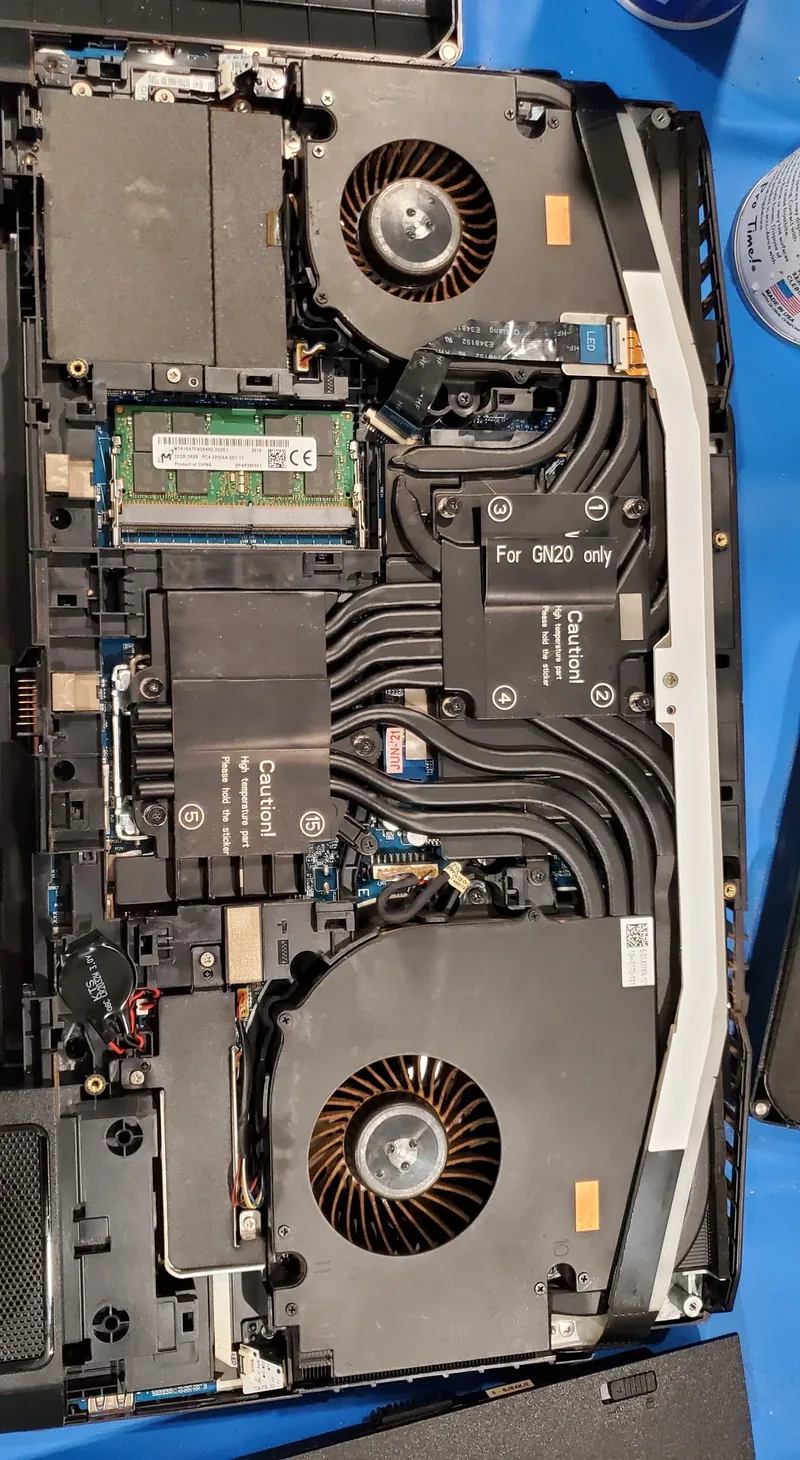
Heat is a common cause of this pattern. A processor may slow itself when cooling is inadequate, but the timing alone does not prove it.
- Listen and check for temperature warnings. A loud fan and unusually hot exhaust can indicate restricted airflow, dust, aging thermal material, or a heavy workload.
- A silent fan with a hot case may indicate a failed fan, although some systems stop their fans at light loads. Shut down if the case becomes unusually hot or the machine reports a temperature warning.
- Make sure the vents are not against soft furnishings. Laptops on beds and sofas overheat for this reason alone.
Cleaning blocked airflow and servicing the cooling system can resolve heat-related throttling when cooling is the confirmed cause. Our computer cleaning service covers this work.
Only web pages are slow; everything else is fine
Then the computer is not the problem and this is the wrong page. The bottleneck is the connection or the network equipment.
- Try the same site on a phone using mobile data rather than the Wi-Fi. That separates the computer from the network in one step.
Our network device troubleshooting post covers the router side.
Worth Knowing
What Actually Makes a Difference
Upgrades vary enormously in how much they change. This is the honest ranking for a machine that feels slow.
An SSD, if you do not have one
Often the biggest practical upgrade for a system still using a healthy mechanical drive. It can improve start-up, application loading, and general responsiveness at once.
More memory, if it is the actual limit
Genuinely useful when memory is pinned and the machine allows it. Useless when the drive is the bottleneck, which is the more common case.
Cleaning and fresh thermal paste
Can restore performance lost to confirmed cooling problems, rather than add performance the system never had. Cleaning or thermal service should be based on temperatures, airflow, condition, and the model’s service guidance rather than age alone.
Avoid These
What Not to Do
- Do not make a generic PC cleaner or driver updater your first step. Use Windows’ built-in storage and startup tools, Windows Update, and the computer or component manufacturer’s support process. A third-party utility that removes files or installs a mismatched driver can create a second problem without identifying the original bottleneck.
- Do not use a third-party tool to repeatedly defragment an SSD like a mechanical drive. Current Windows versions schedule the appropriate optimization, including TRIM, automatically.
- Do not disable everything in the Startup tab. Turning off audio, touchpad and graphics helpers gives you a machine that starts quickly and then does not work properly. Disable what you recognise and do not use; leave the rest.
- Do not add memory to fix a confirmed storage bottleneck. Memory and storage solve different limits. Measure which resource stays constrained before buying either upgrade.
- Do not open the computer without the model’s service instructions. Shut it down, unplug power, disconnect a removable battery where directed, and use anti-static precautions before touching memory, storage, fans, or other internal parts. Never open a power-supply enclosure.
Being Straight About It
When It Is Not Worth Chasing
An SSD or a memory upgrade can extend the useful life of many otherwise healthy machines when testing confirms that part is the bottleneck. A laptop with soldered memory, soldered storage, and a processor that will not support a current operating system has a ceiling that an upgrade may not raise. The repair-or-replace guide covers how to weigh that decision.
Related Guides
If it also freezes and then recovers, the drive may be failing rather than merely slow.
If the upgrade list is getting long, it is worth doing the arithmetic first.
Sources and Further Reading
These references support the Windows diagnostic and thermal principles in this guide. Hardware limits and safe service procedures still depend on the exact computer and component documentation.
- Microsoft Support: tips to improve and diagnose Windows PC performance
- Microsoft Support: Task Manager and Windows system-configuration tools
- Intel: processor temperature, thermal throttling, and protective shutdown
Sources were reviewed on August 11, 2026. A citation does not imply sponsorship or endorsement.
If You Would Rather Not
If you have worked through this and would rather hand it over, we repair computers on site and by drop-off at our Baker Road office in New Port Richey. We will tell you before starting if we think the machine is not worth the work. Rates are on our pricing page, and travel is charged by driving distance from the office, confirmed from your address before booking. More about the service on our computer repair page.
 Get in Touch
Written by Peter Maz, Raven Technology Solutions. Last updated 2026-08-11.
On-Site Help Near You
Pine Island | Port Richey | River Ridge | Safety Harbor | Spring Hill | Tampa
Travel is priced by driving distance from our Baker Road office and confirmed from the service address before booking. See every service area.


