Computer Troubleshooting
Is It Worth Repairing an Older Computer?
Including the free firmware setting that changes the answer.
Start Here
Before replacing a machine for being unsupported, check why the Windows 11 test failed. Some compatible computers have TPM support disabled in firmware; Intel often calls it PTT and AMD often calls it fTPM. Before changing firmware settings, protect your files and confirm that you can access the computer’s BitLocker or device-encryption recovery key.
First Few Minutes
Three Questions That Usually Settle It
- What would an equivalent machine cost today? That is the number the repair is measured against, not what you originally paid. Current component pricing, availability, performance needs, and the cost of moving data and applications all belong in the comparison.
- Is the failed part standard, or is it the machine? Drives, memory, batteries, fans and power supplies are replaceable parts at sensible prices. Boards and laptop screens are a large fraction of the machine's value.
- How long do you honestly expect to keep it? A repair that buys three years and a repair that buys six months are very different purchases, even at the same price.
Narrow It Down
Which One Describes Your Situation?
It works, but says it cannot run Windows 11
This is the most common version of the question right now, and it is the one where people most often replace a machine they did not need to.
- Run the PC Health Check tool and read what it actually objects to.
- Before changing anything, back up important files, check whether BitLocker or Windows device encryption is active, and save the recovery key somewhere other than that computer. If protection is active, suspend it before a planned firmware change and resume it after Windows starts normally.
- Use the computer or motherboard manufacturer’s instructions to identify PTT, fTPM, Security Device Support, and Secure Boot. Photograph the original settings so they can be restored. Never choose Clear TPM; clearing it can remove keys used to unlock encrypted data.
- If the hardware supports it and the manufacturer documents the setting, enable TPM support, save, and run the check again. Stop if the recovery key is unavailable or the wording does not match the manual.
- Secure Boot also normally requires UEFI mode. Changing a working installation from Legacy to UEFI can make it unbootable and may require a disk conversion, so that is a good point to hand the machine over instead of experimenting.
That last step is where a mistake costs you the ability to start the machine at all, which is why it is worth being cautious rather than brave with it.
The processor itself is not supported
If the check objects to the processor rather than a setting, no firmware toggle will help. The options are real but each has a genuine trade-off.
- Keep running Windows 10 temporarily. Windows 10 continued to function after general support ended on October 14, 2025, but normal technical assistance and security fixes ended for standard editions. Microsoft offers time-limited Extended Security Updates for eligible enrolled devices; availability, cost, enrollment, and end dates must be checked against Microsoft’s current terms.
- Replace the machine, which is the straightforward answer if it was near the end anyway.
- For a light-use machine, an alternative operating system is a genuine option, with the honest caveat that some Windows programs will not run on it.
This decision has a shelf life: the extended-update route closes eventually, so a machine kept on that basis should be understood as borrowed time rather than a permanent answer.
It is a desktop
Many desktops are easier to upgrade or repair because more of their parts are standardized and accessible, although proprietary cases, power supplies, boards, and connectors are important exceptions.
- Storage, memory, power supply and often the graphics card are all replaceable with ordinary parts.
- A desktop from several years ago with an SSD and enough memory is frequently still a perfectly good machine.
- The case, and often the power supply, can outlive two sets of internals.
It is a laptop
Laptops have a harder ceiling, and it is worth knowing where it is before spending.
- If the memory and storage are soldered, those upgrades do not exist at any price.
- A screen or a board on a mid-range laptop can easily exceed what the machine would sell for.
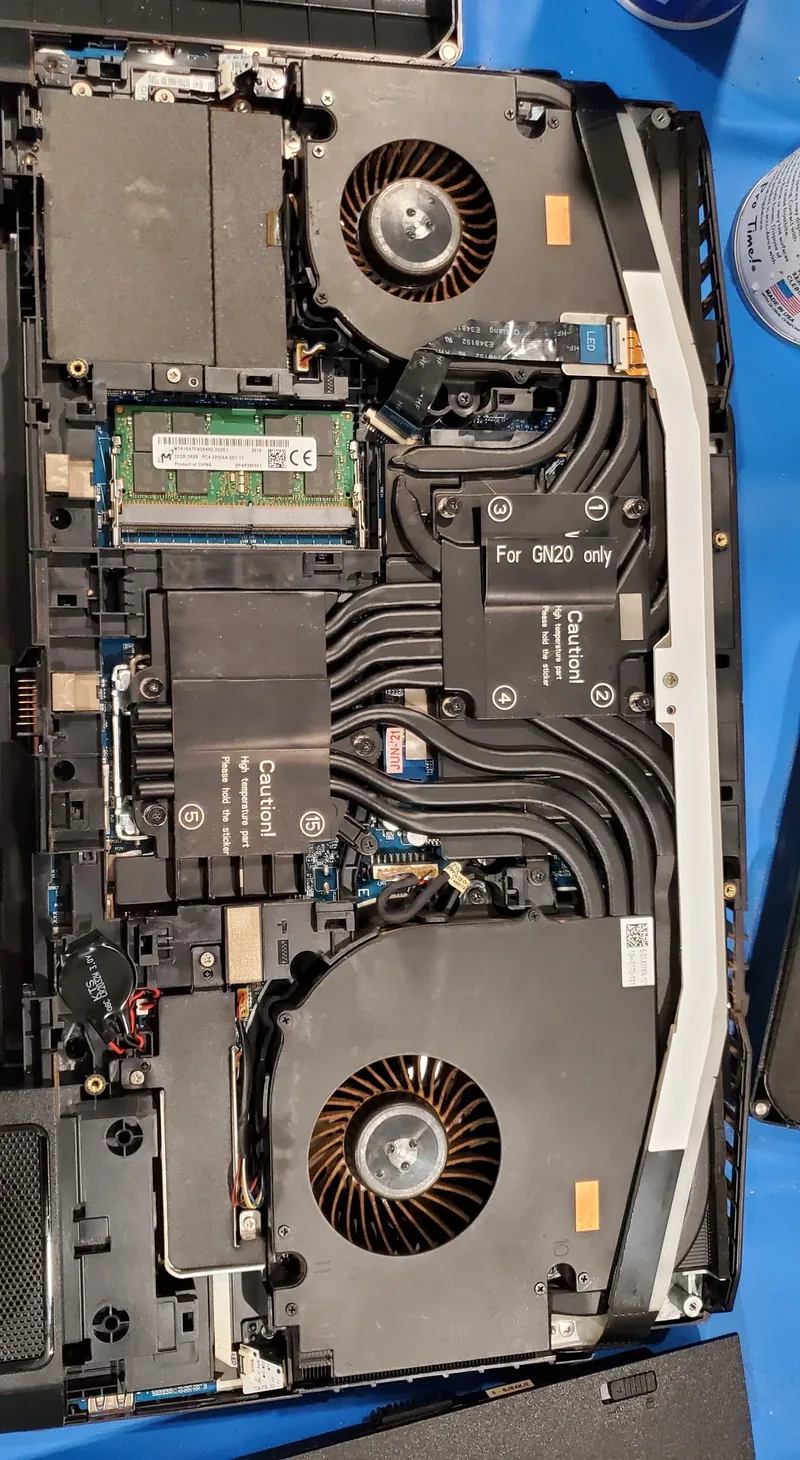
- Batteries, fans, drives and thermal paste are usually worth doing on any laptop you otherwise like.
You want the arithmetic rather than a rule of thumb
The rule of thumb — repair if it costs less than half a replacement — is a starting point, not an answer. This is better.
- Take the cost of the repair and divide it by the number of months you honestly expect to keep the machine.
- Take the cost of a replacement and divide it by forty-eight, which is a fair life for a new machine.
- Compare the two monthly figures. If the repair is lower, it is usually the better buy.
Our pricing page has current rates so you can put a real number into the first line rather than a guess.
Worth Knowing
Parts Worth Doing on Almost Any Machine
Some upgrades are worth doing on nearly anything still in service, because they are inexpensive and they address what actually makes a machine unpleasant to use.
An SSD
The single most effective change on any machine still using a mechanical drive, and usually the cheapest meaningful one.
Battery, fan and thermal paste
Often restores the thermal behavior and battery life a laptop had when it was new, which is frequently all anyone actually wanted.
Memory, where it is socketed
Worth doing when memory is genuinely the limit. Check first that it is not soldered, because on many thin laptops it is.
Avoid These
What Not to Do
- Do not replace a computer for being slow before checking what kind of drive it has. A large share of "it is time for a new one" conclusions are a mechanical drive and nothing else.
- Do not buy a Windows key whose license type and seller cannot be verified. A low price does not establish that a key is transferable, authorized for retail use, or likely to remain activated. Use Microsoft or an authorized seller and keep the purchase record.
- Do not give away or recycle the old machine before the storage is sanitized or removed. Normal file deletion and emptying the recycle bin are not secure erasure. The appropriate clear, purge, destruction, or manufacturer secure-erase method depends on the storage technology, sensitivity, device condition, and destination.
- Do not read "no longer supported" as "stops working on a date". The machine keeps running; what ends is security updates. That is a real risk and a slow one, and it deserves a considered decision rather than a panicked purchase.
- Do not open a computer while it is connected to power. Follow the model’s service manual, unplug the charger or mains lead, disconnect a removable battery where the manual directs, and use anti-static precautions. Never open a power-supply enclosure; it can retain dangerous voltage after it is unplugged.
Being Straight About It
When Replacing Really Is the Answer
When the board has failed on a laptop, when the screen costs more than the machine is worth, when the memory and storage are soldered at a ceiling you have already hit, or when the processor will not support a current operating system and the machine is needed for years rather than months — replacement is the honest recommendation, and we would rather give you that than sell you a repair that does not last. If a new build is the direction, our computer building service covers it.
Related Guides
If the complaint is speed rather than failure, start there before deciding anything.
If the drive is the failing part, that is usually a repair rather than a replacement.
Sources and Further Reading
Windows eligibility and support options change over time. These primary references support the lifecycle, hardware-requirement, encryption, and data-handling cautions in this guide; the computer or motherboard maker’s manual controls the exact firmware steps.
- Microsoft: Windows 11 system requirements, TPM 2.0, UEFI, and Secure Boot
- Microsoft: Windows 10 support ended on October 14, 2025 and current Extended Security Updates information.
- Microsoft BitLocker overview and recovery-key instructions.
- NIST SP 800-88 Revision 2: media sanitization guidance.
Lifecycle and source status were reviewed on August 11, 2026. Recheck Microsoft’s current pages before making a support decision. A citation does not imply sponsorship or endorsement.
If You Would Rather Not
If you have worked through this and would rather hand it over, we repair computers on site and by drop-off at our Baker Road office in New Port Richey. We will tell you before starting if we think the machine is not worth the work. Rates are on our pricing page, and travel is charged by driving distance from the office, confirmed from your address before booking. More about the service on our computer repair page.
 Get in Touch
Written by Peter Maz, Raven Technology Solutions. Last updated 2026-08-11.


