Computer Care and Security
Computer Maintenance Checklist: A Practical Security Schedule
Simple recurring tasks that reduce avoidable failures, security problems, and last-minute surprises.
Before You Change Anything
Make sure important files exist somewhere besides the computer you are about to maintain. Change one thing at a time, write down unfamiliar settings before altering them, and use only official operating-system, device-manufacturer, and application sources. If the computer shows a swollen battery, smoke, sparking, a burning smell, liquid damage, or unusual drive noises, stop using it and skip directly to the warning section below.
The Schedule
What to Check and When
This is a starting schedule, not a promise that every computer needs identical work. A device used daily for business or important family files may need more frequent backups and checks than a lightly used spare computer.
| Frequency | Maintenance tasks | Security and backup tasks |
|---|---|---|
| Ongoing | Keep vents unobstructed, avoid hard shutdowns unless the system is frozen, and pay attention to new heat, noise, errors, or performance changes. | Pause before unexpected links, attachments, password requests, payment requests, or remote-support prompts. Use unique passwords or passkeys and multifactor authentication where available. |
| Weekly | Restart if the computer has only been sleeping, review any repeated errors, and confirm that essential peripherals still connect normally. | Check that the most recent scheduled backup completed when weekly protection is appropriate for how often your files change. |
| Monthly | Install operating-system, browser, and application updates; review storage warnings; and check whether unnecessary startup programs are slowing sign-in. | Confirm security protection and the firewall are active, verify the latest backup date, and restore one sample file to prove the backup can be used. |
| Quarterly | Review unused applications, unnecessary browser extensions, old downloads, and exterior dust around vents. Delete files only after confirming they are not needed. | Review important-account recovery email addresses and phone numbers, remove unknown signed-in devices, and confirm backup coverage still includes the right folders. |
| Every 6–12 months | Inspect cables, chargers, fans, and vents; perform manufacturer-approved cleaning; and consider internal cleaning when dust or heat makes it necessary. | Perform a broader restore test, review the accounts and devices that matter most, and update the written recovery plan for important files. |
| Immediately | Act on battery swelling, burning smells, smoke, sparking, liquid exposure, repeated crashes, temperature warnings, or clicking and grinding from a drive. | Disconnect from the network after suspected ransomware or compromise, avoid entering more passwords, and seek help before deleting evidence or overwriting recoverable data. |
1. Updates
Patch the Systems You Actually Use
Enable automatic updates where practical, but still check at least monthly for operating-system, browser, security, and important application updates. Restart when an update requires it. Download updates from the operating system, the application itself, or the device manufacturer—not from pop-up advertisements, registry cleaners, or third-party driver-update utilities.
CISA identifies prompt software updates as one of its core everyday security practices. Use the current instructions from CISA Secure Our World, Microsoft Support, or Apple Support when a menu or update process changes.
2. Backups
Check the Backup, Then Test a Restore
Match backup frequency to how much work you can afford to lose. Someone editing important files daily needs a different schedule than someone using a computer once a month. Confirm the last successful backup and periodically restore a sample file to a safe location. A green status or a cloud-sync icon is not proof that every important file can be recovered.
Scheduled weekly or monthly snapshots are not real-time protection. Keep important files in more than one place and understand which folders, drives, versions, and retention periods are included. Microsoft documents current Windows Backup options, while Apple documents Time Machine backup and restore.
3. Account Security
Use Layers, Not One Perfect Tool
- Use a unique password or passkey for every important account and store passwords in a reputable password manager.
- Turn on multifactor authentication, especially for email, financial, cloud-storage, and password-manager accounts.
- Keep account-recovery information current and store recovery codes somewhere protected and separate from the computer.
- Confirm the built-in or chosen security software and firewall are active. Do not install several competing antivirus products.
- Remove browser extensions and applications you no longer trust or use, after confirming they are not required for work or accessibility.
- Treat urgent requests for passwords, payment, remote access, or security codes as suspicious until independently verified.
CISA's current consumer guidance emphasizes phishing awareness, strong passwords and password managers, multifactor authentication, and software updates. These habits reduce risk but cannot guarantee that an account or computer will never be compromised.
4. Performance
Maintain First, Upgrade Only When Testing Supports It
- Review storage use before deleting anything; move or remove only files you recognize and have backed up where necessary.
- Disable unnecessary startup applications through the operating system rather than using registry-cleaner or optimizer utilities.
- Uninstall software you no longer need, but verify shared business, printer, accessibility, and security components first.
- Watch for changes: slow only after warming up can indicate heat, while freezes, disk warnings, or unusual drive noise can indicate storage failure.
If performance has already changed, use the slow-computer guide before buying an upgrade. If the computer freezes, reports disk errors, or makes unusual drive noises, read the failing-drive warning guide and protect your files first.
5. Physical Care
Clean Safely and Protect Airflow
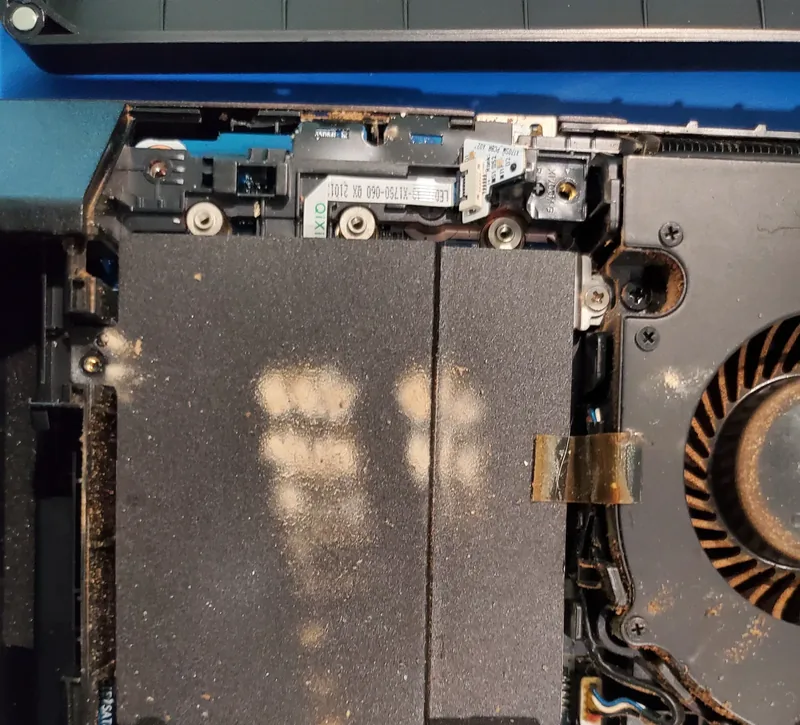
Shut the computer down, unplug external power, and follow the manufacturer's cleaning instructions. Keep vents clear of bedding, carpet, papers, and tightly packed cables. Use only products and methods approved for the device. Do not spray liquid directly on electronics, open a power-supply enclosure, puncture or press on a swollen battery, or disassemble equipment you are not prepared to reconnect safely.
Exterior dust removal and workspace cleanup are reasonable home tasks. Internal cleaning, thermal service, swollen batteries, liquid exposure, damaged power connections, and equipment that must remain operational are good reasons to stop and request professional help. Our computer cleaning service covers condition-based internal cleaning and airflow checks.
Power protection is part of preventive care too. Use the UPS, surge protector, and extension cord comparison to decide which equipment needs battery backup, which only needs surge protection, and how to avoid unsafe cord combinations.
Stop-DIY Warnings
Shut Down or Disconnect When Safety or Data Is at Risk
Power down and unplug when safe
- Battery swelling or a separating case
- Burning smell, smoke, sparking, or unusual heat
- Liquid exposure or damaged power connectors
- A fan that has stopped while the device overheats
Protect data and accounts first
- Clicking, grinding, disk warnings, or repeated freezes
- Ransom notes, unknown encryption, or security tools being disabled
- Unexpected account recovery changes or unfamiliar signed-in devices
- An operating system that no longer receives security updates
After a suspected compromise, disconnect the affected computer from the network when practical and avoid entering more passwords on it. Use another trusted device to secure important accounts. If a drive may be failing, repeated scans, repairs, resets, and reinstalls can overwrite or stress recoverable data.
Evidence Behind the Schedule
Sources and Further Reading
The schedule is a practical starting point, not a universal manufacturer interval. Adjust it for the device, operating environment, risk, support lifecycle, and the instructions for the software or hardware you actually use.
- CISA Secure Our World for phishing awareness, strong passwords, multi-factor authentication, and prompt software updates.
- Microsoft Windows Backup guidance for current Windows backup capabilities.
- Apple Time Machine guidance for Mac backup and restore procedures.
Sources were reviewed on August 11, 2026. A citation does not imply sponsorship or endorsement.
Prefer Not to Do It Yourself?
Raven Can Help Build and Perform the Checklist
Raven Technology Solutions can provide one-time computer maintenance, update and startup reviews, backup setup, security hardening, physical cleaning, and plain-language training for homes and small businesses. The recurring managed-maintenance package shown on the pricing page is planned and is not yet open for enrollment; one-time services remain available by appointment.
Technical Support | Cybersecurity Help | Computer Cleaning | Pricing
 Ask for Maintenance Help
Written by Peter Maz, Raven Technology Solutions. Published and last updated 2026-08-14.
On-Site Help Near You
Tarpon Springs | Temple Terrace | Trinity | Weeki Wachee | Wesley Chapel | Pasco County
Travel is priced by driving distance from our Baker Road office and confirmed from the service address before booking. See every service area.


