Computer Troubleshooting
Computer Will Not Turn On: How to Narrow It Down
Desktops and laptops, before you buy any parts.
Start Here
Press the power button, then press Caps Lock and watch the keyboard light. If the light toggles, the keyboard is receiving a response and a display or graphics problem becomes more likely. It does not prove that startup completed or that every internal component is healthy, but it is a useful clue for choosing the next checks.
First Few Minutes
Three Checks, in This Order
- Rule out a failed strip or protector only when it is safe. Test another known-working outlet or connect the computer as its manual permits. Do not bypass grounding, overload an outlet, or keep using equipment that is warm, damaged, loose, or discolored. Protection life depends on the device, exposure, indicators, and manufacturer instructions; there is no universal replacement interval. See the power-protection guide before changing the setup.
- Check the Caps Lock light as described above. A response suggests that at least part of the computer is running; no response is not definitive because some keyboards and systems do not update that light during a failed start.
- On a laptop, check the charger is the right one. A phone charger that physically fits a USB-C laptop will often not deliver enough power to start it from flat, and many thin laptops only charge through one of their USB-C ports. Look for a light on the charger brick as well.
Narrow It Down
Which One Describes Your Computer?
Nothing at all: no lights, no fans, no sound
The machine is not receiving power, or is not accepting it. Work outward from the wall rather than assuming the computer is dead.
- Test the outlet with something else you know works.
- On a desktop, check the rocker switch on the power supply at the back. It is easy to knock while moving a machine and it is not obvious when it is off.
- Hold the power button down for about fifteen seconds with the power disconnected, then reconnect and try again. This clears residual charge and revives a surprising number of machines.
- On a laptop with a user-removable battery, follow the manufacturer’s instructions to test with the battery disconnected and the correct charger attached. Do not remove or test a battery that is swollen, hot, leaking, or built into the case.
If a desktop is genuinely getting mains power and still does nothing, the likely candidates are the power supply, the front-panel power button, or the board. Those are not distinguishable by looking, which is why the next item in the do-not list matters.
Fans and lights run, but there is no picture
A responding keyboard makes this branch more likely, but it does not prove the rest of the computer is healthy. Start with the external display checks because they are low-risk and cost nothing.
- Check the monitor is on its correct input. Monitors do not always switch automatically.
- If the desktop has a separate graphics card, make sure the cable is in the card and not in the port on the motherboard. Plugging into the wrong one produces exactly this symptom.
- Try a different cable and, if you can, a different monitor or a television.
- If a second screen was ever connected, Windows may be putting the desktop on a display that is not there. Pressing the Windows key and P, then the down arrow and Enter, cycles the display mode blind.
- If none of that helps and the model’s service manual identifies user-serviceable memory, shut down, unplug the mains lead or charger, disconnect a removable battery where directed, and use anti-static precautions before reseating memory. Otherwise, have this internal check performed professionally.
Many desktop boards have a small diagnostic light or a beep code that names the failing component. It is worth looking up what yours is telling you before replacing anything.
The maker logo appears, then it stops, loops or shows an error
Reaching the maker logo shows that the machine completed some early startup checks, but it does not prove that the drive or all other hardware is healthy. The failure may be in Windows, storage, firmware settings, or another component.
- Read the message. "No bootable device", "no boot disk", or similar can mean a missing drive, a damaged boot entry, or a firmware boot-order problem. Protect important data before running reset or repair tools.
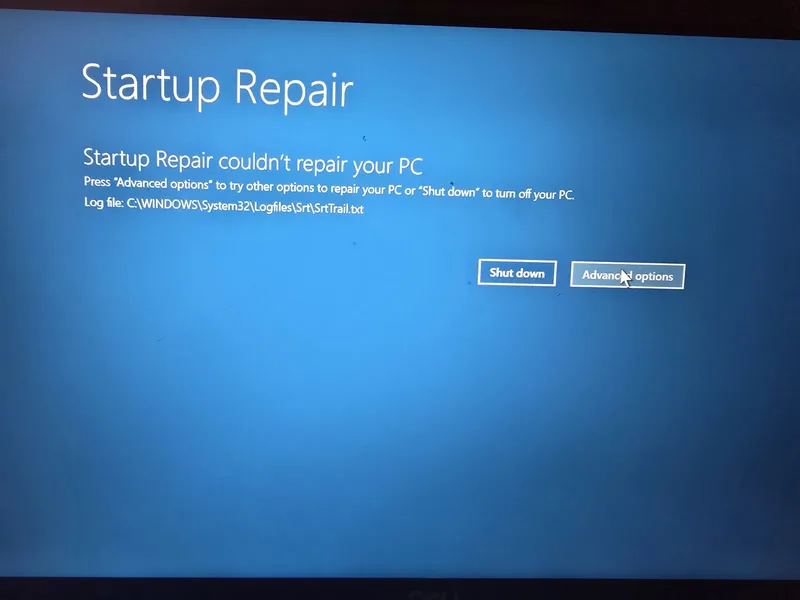
- A repeating "preparing automatic repair" loop can come from damaged Windows files, a failed update, or an unhealthy drive. Do not assume it is software until the data and drive health have been considered.
- Check in the firmware setup screen whether the drive is listed. Detection is useful, but it is not a drive-health test; a failing drive may still appear there.
This is the boundary of this guide. If the drive is missing or the machine freezes and recovers, follow the drive health guide instead.
It starts for a second and shuts off, or clicks repeatedly
An immediate shutdown or repeated click can be consistent with a protection response, power fault, battery or adapter issue, board fault, or another component problem. The symptom narrows the branch but does not prove which part failed.
- On a desktop, first disconnect external accessories. Internal isolation should only be attempted with the computer unplugged, the model’s service instructions at hand, and anti-static precautions in place. Never open the power-supply enclosure.
- On a laptop, look carefully at the case: a trackpad sitting proud of the surface, a lid that no longer closes flat, or a base that has started to bow can indicate a swollen battery.
- If the battery may be swollen, shut the laptop down, unplug it, stop charging or using it, and arrange qualified service. Do not press the case flat or try to remove the battery yourself.
Worth Knowing
Desktop and Laptop Differ Here
Almost every check above applies to both, but a few are specific to one or the other and are worth separating out.
Desktops
Many desktop power supplies have a rear switch and an internal fan, although the fan may not run at low load. The supply is replaceable as a complete unit, but its enclosure must never be opened. Some boards also provide diagnostic lights or beep codes that narrow the fault.
Laptops
Power problems more often come down to the charger, the charging port, or the battery. A swollen battery is a safety issue rather than an inconvenience, and it is common enough in older machines to be worth checking for by eye.
All-in-ones
These behave like laptops internally but look like desktops. The display and the computer share a housing, so a blank screen is harder to isolate and usually needs opening up.
Avoid These
What Not to Do
- Do not keep pressing the power button hoping it catches. If a protection circuit is shutting the machine down, repeated attempts can add stress or worsen an electrical fault. Stop and diagnose after the symptom repeats.
- Do not buy a power supply on a guess. This is the most commonly wasted purchase in this category, because the same symptoms come from a failed front-panel button or the board itself. Guessing at parts is exactly how a cheap fault becomes an expensive one.
- Do not run or charge a laptop with a swollen battery "just to get the files off". Power it down, unplug it, keep it away from heat and flammable materials, and arrange qualified removal and appropriate battery recycling. Do not press, puncture, bend, or remove it yourself.
- Do not use "Reset this PC" to escape a boot loop before your files are copied off. Even the "keep my files" option removes installed programs, and on a drive that is failing it can stop partway and leave nothing recoverable.
Being Straight About It
When It Is Not Worth Chasing
A failed board on an older laptop can make replacement more practical, but the decision depends on the exact model, part availability, labor, and the machine’s value. A failed desktop power supply may be straightforward when the computer uses a standard, available unit, but proprietary connectors or form factors, integrated designs, and damage to other components can change the estimate. Before deciding either way, read the repair-or-replace guide and compare the model-specific diagnosis and quote.
Related Guides
If it reaches the maker logo and then fails, the drive is the next thing to look at.
If this turns out to be a board or a screen, the replacement sum is worth doing first.
Sources and Further Reading
These references support the symptom categories and battery-safety limits used here. Power checks, diagnostic lights, charger requirements, and service access still vary by model, so follow the manufacturer’s manual for the exact computer.
- Dell Support: distinguishing no-power, no-POST, no-video, and no-boot symptoms
- Dell Support: swollen-battery recognition and handling guidance
- U.S. EPA: swollen lithium-ion batteries and proper disposal options
Sources were reviewed on August 11, 2026. A citation does not imply sponsorship or endorsement. Stop using a device that is smoking, sparking, burning, unusually hot, or visibly swollen and seek appropriate emergency help if there is an immediate fire risk.
If You Would Rather Not
If you have worked through this and would rather hand it over, we repair computers on site and by drop-off at our Baker Road office in New Port Richey. We will tell you before starting if we think the machine is not worth the work. Rates are on our pricing page, and travel is charged by driving distance from the office, confirmed from your address before booking. More about the service on our computer repair page.
 Get in Touch
Written by Peter Maz, Raven Technology Solutions. Last updated 2026-08-11.
On-Site Help Near You
Holiday | Hudson | Largo | Lutz | Masaryktown | Palm Harbor
Travel is priced by driving distance from our Baker Road office and confirmed from the service address before booking. See every service area.


