Printer Troubleshooting
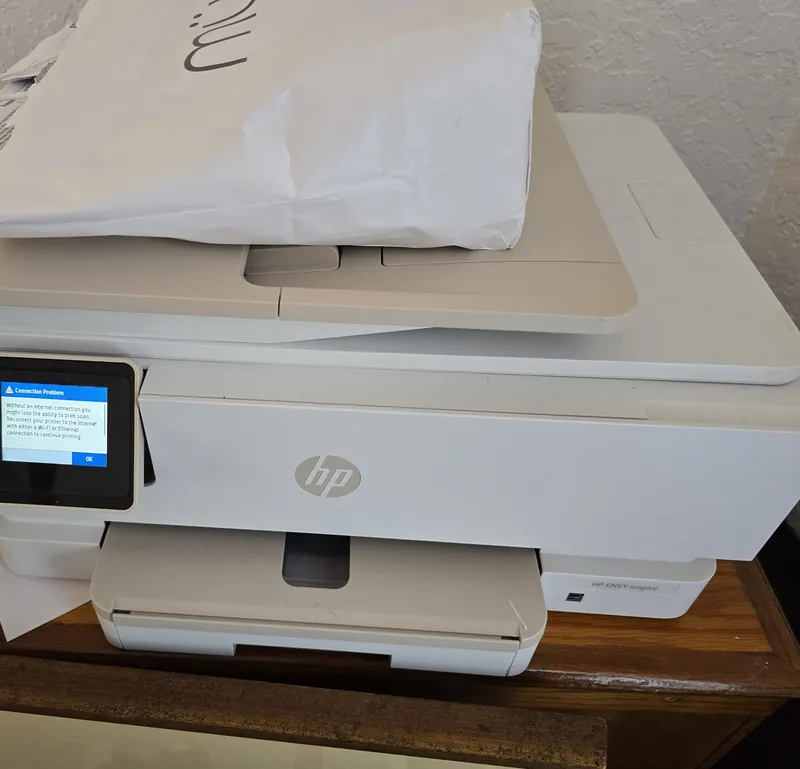
Printer Says Offline? How to Get It Printing Again
Inkjet and laser printers, on Windows and Mac.
Start Here
An “offline” message often describes a communication problem rather than failed printer hardware. One common cause is a changed IP address. Print a network configuration page from the printer’s control panel and compare its address with the printer port on the computer; a mismatch gives you a likely cause to correct.
First Two Minutes
Three Checks, in This Order
- Print a network config page from the printer itself, using its own buttons or touchscreen. This helps separate a printer that has left the Wi-Fi from one that is connected but unreachable from the computer. If it will not print the report, check the panel for a local error and confirm the model-specific report steps before drawing a conclusion.
- Check whether Windows has flagged the printer offline itself. Open Settings, then Bluetooth & devices, then Printers & scanners, choose the printer, and check its queue and status. An offline queue setting can prevent jobs from being sent even when the printer itself has no hardware error.
- Compare the IP address on the config page with the port your computer is using. In Windows, open the printer’s properties and look at the Ports tab. If the config page says 192.168.1.42 and a standard TCP/IP port says 192.168.1.37, that mismatch is likely the problem. Discovery-based ports such as WSD may not display a fixed address in the same way.
Narrow It Down
Which One Describes Your Printer?
The printer shows no Wi-Fi connection at all
Look at the printer’s own screen or Wi-Fi light. Many home and small-office printers support only 2.4 GHz Wi-Fi. A router can normally advertise 2.4 GHz and 5 GHz under one network name while a 2.4 GHz-only printer connects to the supported band, but setup can still fail because of weak signal, WPA3-only security, an onboarding app, or a router’s band-steering implementation.
- Reconnect the printer using its own setup wizard, choosing your network by name and entering the password.
- Confirm the router still offers a compatible 2.4 GHz network and security mode. If the manufacturer recommends it, temporarily separating the band names can help during setup; restore the preferred router configuration after testing.
- Use a guest or IoT network only if it allows the computers and phones that print to reach the printer. Many such networks enable client isolation by design, which blocks local printing even though the printer shows as connected.
If the printer joins and then drops off again, weak signal is one possibility. Check the signal reading and move a printer out of a metal cabinet or closer to the router before replacing equipment.
The printer is online, but its IP does not match the port
An address mismatch is a common cause and is worth fixing properly. Routers lease IP addresses for a set period, so a printer can return with a different address while a standard TCP/IP port still points at the old one.
- Correct the port so it points at the address printed on the config page. In Windows this is Printer properties, Ports, Configure Port, and change the printer name or IP address field.
- If the router supports it and the network administrator approves, consider reserving the printer’s current address for its MAC address. Router interfaces may call this a DHCP reservation, address reservation, or static lease; follow the router’s documentation so the address remains inside the intended network plan.
A router reservation is often easier to manage than a static address on the printer because the router remains aware of the assignment. If the network instead requires a static printer address, choose one outside the automatic pool and document it to avoid a conflict.
Everything matches, and it still says offline
At this point, continue with computer-side checks without assuming the network is proven healthy. The print spooler queues jobs and can become stuck on a failed job.
- Clear the queue, then restart the Print Spooler service. On Windows, open Services, find Print Spooler, and restart it.
- If that does not help, remove the printer from Windows and add it again by IP address rather than by letting Windows discover it.
- On a Mac, follow Apple’s printer troubleshooting steps and the printer manufacturer’s exact-model instructions before removing and re-adding the printer. If you add it by IP, use only a protocol the model documents as supported.
A printer that works from one computer but not another strongly suggests a computer-specific port, driver, queue, firewall, or permission problem. That is a useful test before anything more drastic.
It is connected by USB, not Wi-Fi
A USB printer that reports offline is a different problem entirely, and none of the network steps apply.
- Try a different USB port, ideally one directly on the computer rather than through a hub.
- Inspect the cable for damage or pinching and, if available, test with a known-good cable of the type the manufacturer specifies.
- Check the printer is genuinely powered on and not sitting in an error state on its own display.
Model Differences
Where the Steps Differ by Brand
The diagnostic principles above apply broadly, but menu names and reset procedures vary by model and firmware. The examples below are orientation only; the exact-model manual and current manufacturer support page take precedence.
HP
Some models place a network report under Settings, Reports, or Network Configuration. Other HP printers use the control panel or HP software differently, so confirm the report and reset procedure for the exact model before changing network settings.
Brother
Some models use Network, WLAN, or Setup Wizard menus and offer a Network Configuration report. Names and availability differ, so use the exact model’s instructions.
Epson
Many models offer a Wi-Fi Setup Wizard and a Network Status Sheet, but the path differs across product lines. Check the exact model’s support page before resetting or reconfiguring it.
Canon
Some models place the address and MAC information under LAN or Device settings and can print a LAN settings list. Confirm the menu path in the exact-model manual.
Avoid These
What Not to Do
- Do not factory-reset the printer first. A reset can erase Wi-Fi, address, scan, and other settings without identifying the cause. Treat it as a documented last step, record the settings you will need, and follow the exact-model instructions.
- Do not start by reinstalling the driver. A driver reinstall does not fix an address mismatch, and on Windows it can leave a second copy of the printer behind that confuses things further.
- Do not assign an address without checking the router’s address plan. An unmanaged static address inside the automatic pool can conflict with another device. Use a documented reservation or an address selected by the network administrator.
Being Straight About It
When It Is Not Worth Chasing
If the printer will not join a known-compatible test network after a documented network reset and firmware check, but works over USB, the wireless hardware may need service. On an inexpensive inkjet that repair may not be economical. A direct USB connection or a manufacturer-supported network adapter can sometimes keep an otherwise useful printer in service without weakening network isolation.
Related Guides
If it prints but the output looks wrong, that is a different problem — see faded and streaky prints.
If this printer has been a recurring problem, it may be worth deciding whether to keep repairing it.
Sources and Further Reading
- Microsoft Support: fix printer connection and printing problems in Windows
- Microsoft Support: troubleshoot an offline printer in Windows
- Apple Support: solve printing problems on Mac
Sources reviewed August 11, 2026. General guidance cannot replace the manual and current support instructions for an exact printer, router, operating system, and firmware version. These citations do not imply sponsorship or endorsement.
If You Would Rather Not
If you have worked through this and would rather hand it over, we repair printers on site and by drop-off at our Baker Road office in New Port Richey. We will tell you before starting if we think the machine is not worth the work. Rates are on our pricing page, and travel is charged by driving distance from the office, confirmed from your address before booking. More about the service on our printer repair page.
 Get in Touch
Written by Peter Maz, Raven Technology Solutions. Last updated 2026-08-11.
On-Site Help Near You
Holiday | Hudson | Lutz | New Port Richey | Palm Harbor | Port Richey
Travel is priced by driving distance from our Baker Road office and confirmed from the service address before booking. See every service area.


